Make a Wi-Fi QR code your guests can scan
Create a beautiful Wi-Fi sign in a minute and print it at its true size. Your password stays in your browser.

In this photo: 4 × 6 in card.
Scan check Once your details are in, this page reads the finished sign back like a phone camera would.
From router to frame
Type the details exactly
Use the network name and password your router shows, capitals and spaces included. The security type is WPA2/WPA3 for nearly everyone.
Pick a sign and check it
Choose a design and edit the words. The page reads the finished sign back the way a phone camera would and confirms it matches.
Print at actual size
Download the PDF and print at 100%. Cut on the marks, slip it into the frame, then scan the printed sign once with your own phone.
What happens when a guest scans it
| Phone | How to scan | What they see |
|---|---|---|
| iPhone and iPad | Point the Camera app at the code. | A “Join network” banner. One tap joins. iPhone guide |
| Google Pixel and most Android phones | Point the camera at the code, or use the QR button in Wi-Fi settings. | A prompt to connect to the network. Android guide |
| Samsung Galaxy | Point the Camera at the code, or use the QR icon in Wi-Fi settings. | A pop-up to connect. Samsung guide |
| Laptops and older phones | No camera scanning. | They type the network name and password printed under the code. |
Joining relies on the phone, the router and the exact details. WPA3-only and hidden networks vary most between phones; here is how to fix a code that won't connect.
Seven signs, every size
Each design prints at 4×6 in, 5×7 in, Letter, A4, as business cards or as a folding table tent. The words are yours to change.
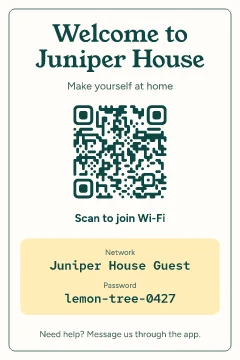 Warm welcome
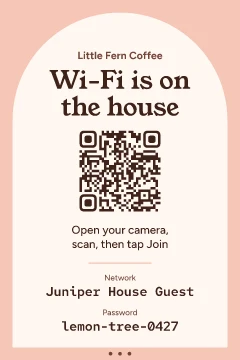 Café arch
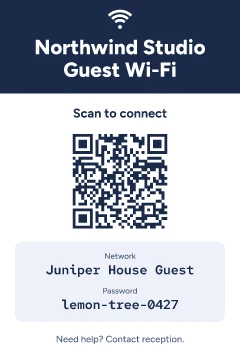 Front desk
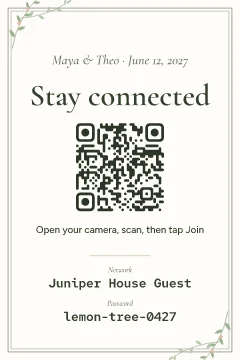 Garden wedding
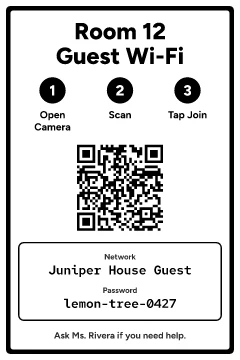 Classroom bold
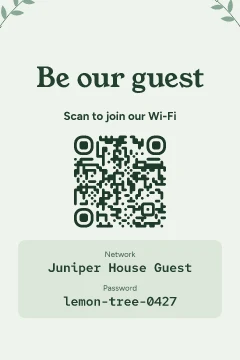 Kitchen botanical
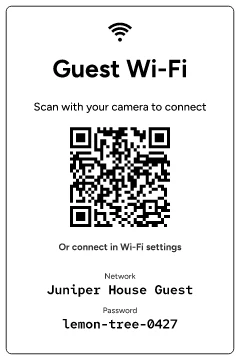 Ink saver
Your password stays on this page
Everything happens on your device: the code, the lettering, the PDF and the scan check. Nothing you type is uploaded, logged or put in a link.
- The site's security policy only lets it talk to itself, so it couldn't send your details elsewhere even by mistake.
- “Remember on this device” is off unless you turn it on, and Clear removes it.
- Try it: load this page, switch off Wi-Fi, then make and download a sign.
Quick answers
- Does the QR code contain my password?
Yes. A Wi-Fi QR code is the network name, security type and password written as plain text in a pattern a camera can read. Anyone who scans it, or photographs the sign, can read the password. That is why a separate guest network is worth setting up before you print.
- Is my password sent anywhere?
No. The code, the sign and the PDF are all made by this page inside your browser, and the site's security policy blocks it from sending data anywhere. You can turn off your internet after the page loads and everything still works. Details are on the privacy page.
- Will the code stop working?
Not by itself: there is no server behind it and nothing to expire. It keeps working until you change the network name, password or security type on your router. Then make and print a new sign.
- Which phones can scan it?
The Camera app on iPhone and iPad (iOS 11 and later), Google Pixel and most Android phones from the last several years, and Samsung Galaxy phones can all join a network from a standard Wi-Fi QR code. See the guides for each.
- What size should I print?
Pick the size of the frame or holder you have: 4×6 in and 5×7 in for frames and stands, Letter or A4 for walls, business cards for check-in packs, or a folding table tent for tables. Always print at 100% (Actual size).